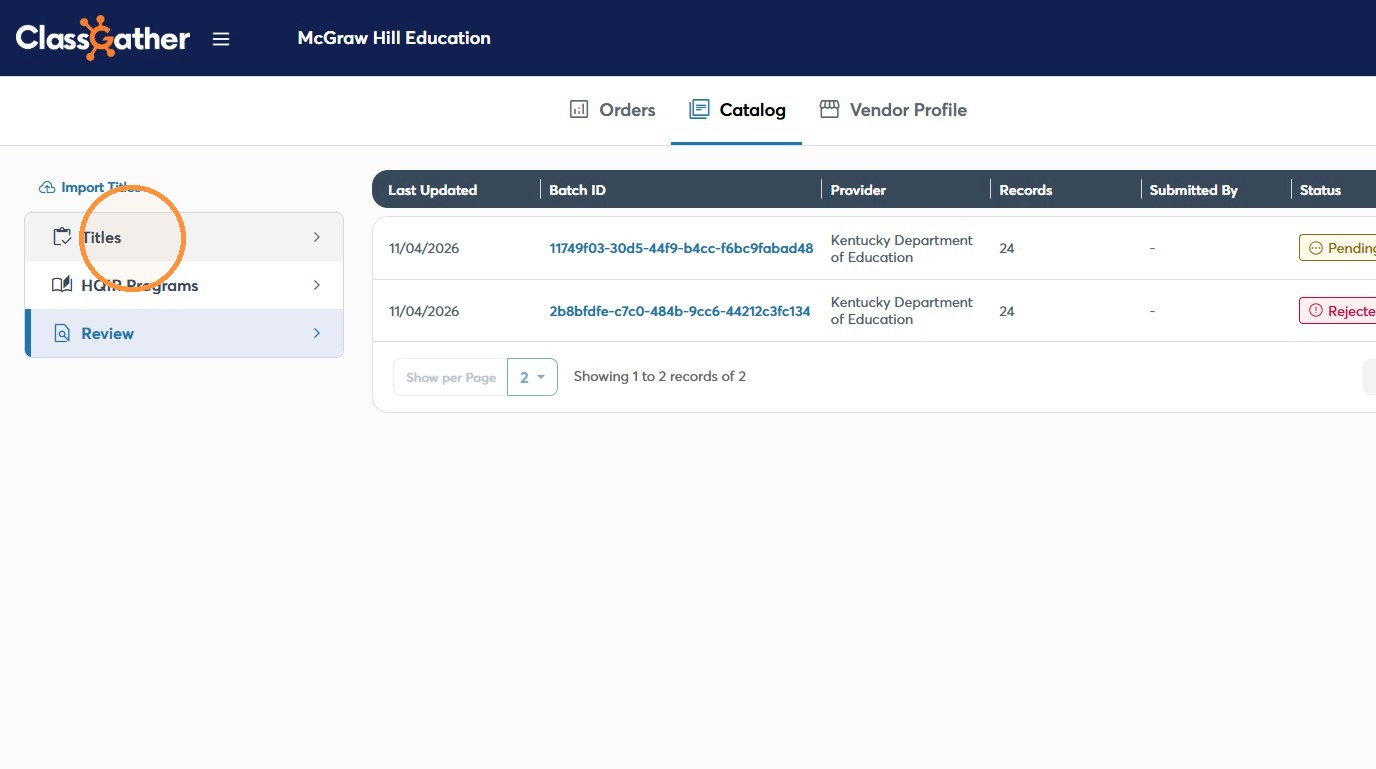
Learn the step-by-step process for validating and importing titles into the ClassGather platform. This guide also covers how to utilize the review feature to communicate with our team regarding specific title imports.
Click Here to view this walk-through with audio.
1. Navigate to your state's Classgather url. EX: https://ms.classgather.com/login/vendor
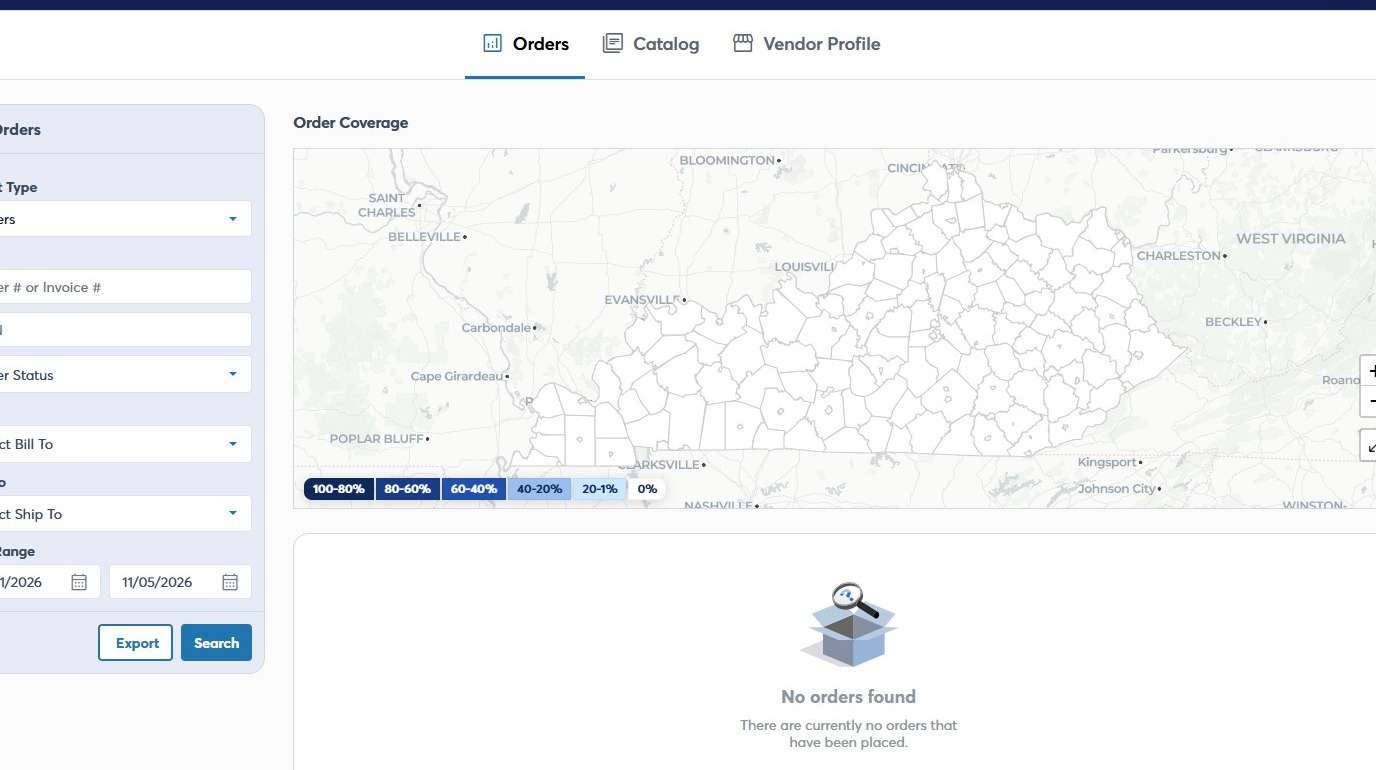
Catalog Navigation
2. Click "Catalog"
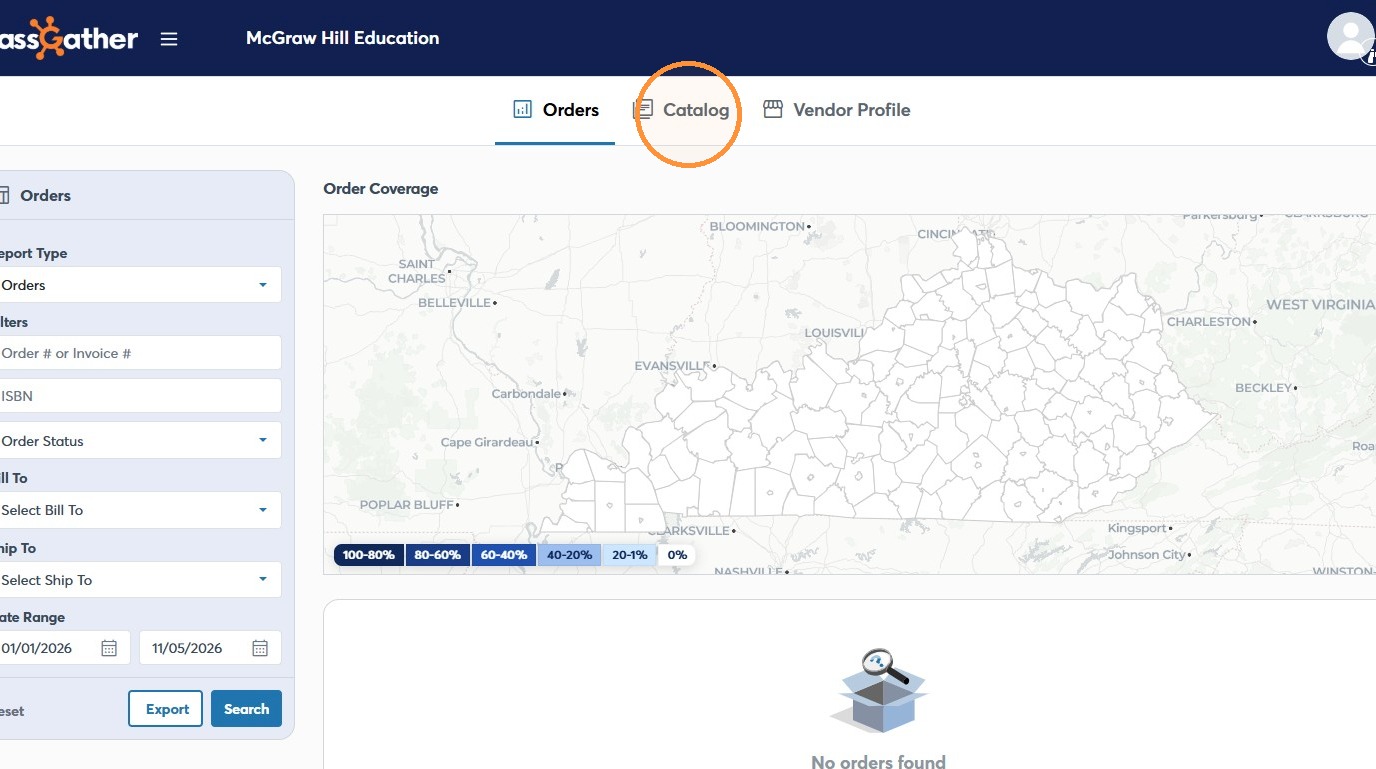
Title Import
3. Click "Import Titles"
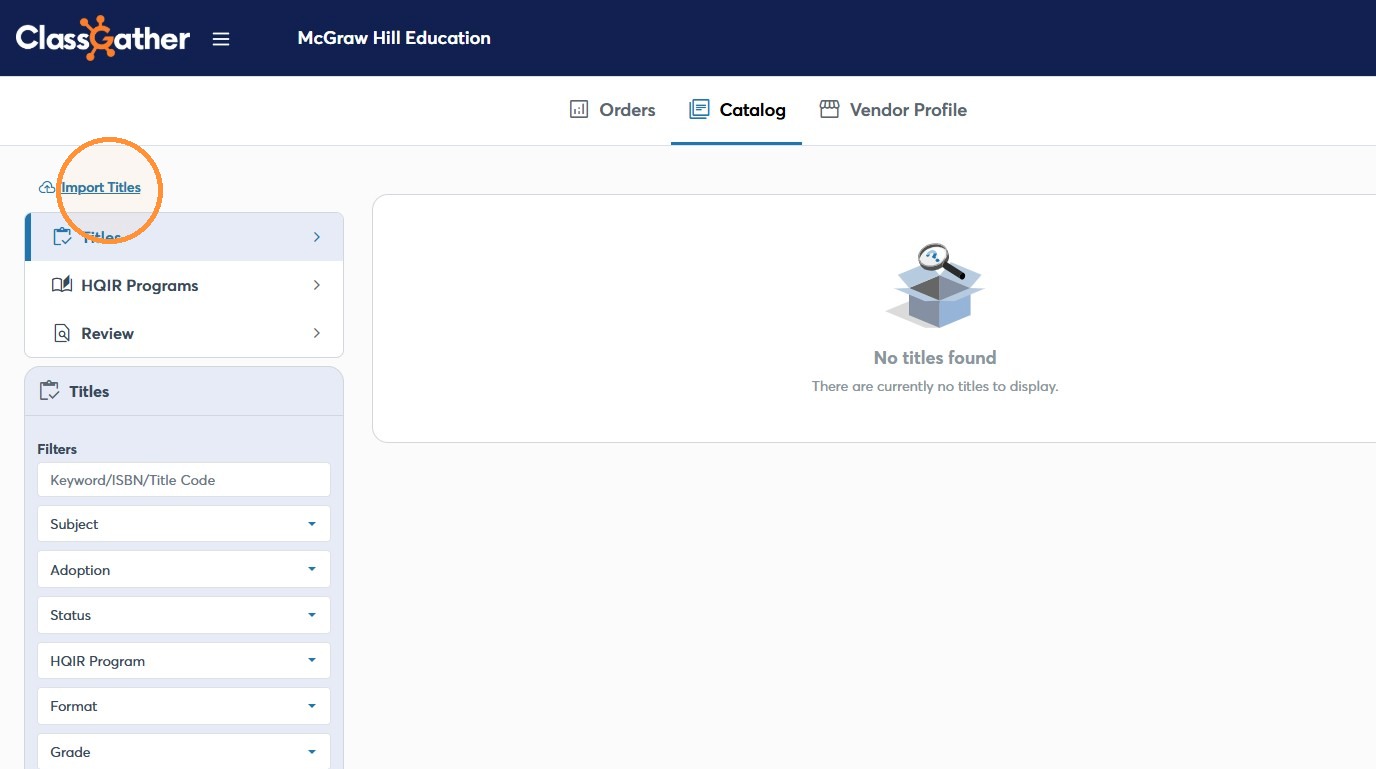
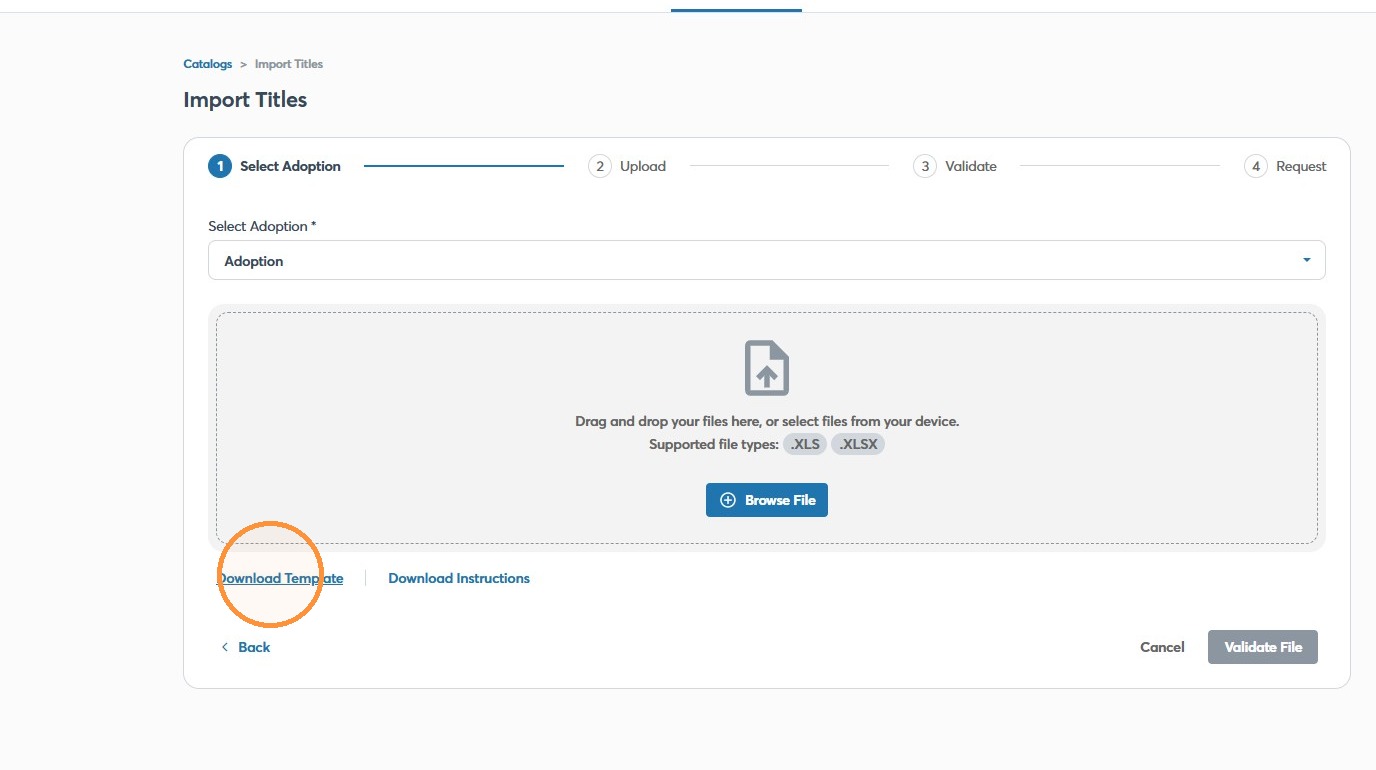
4. Click "Download Template"
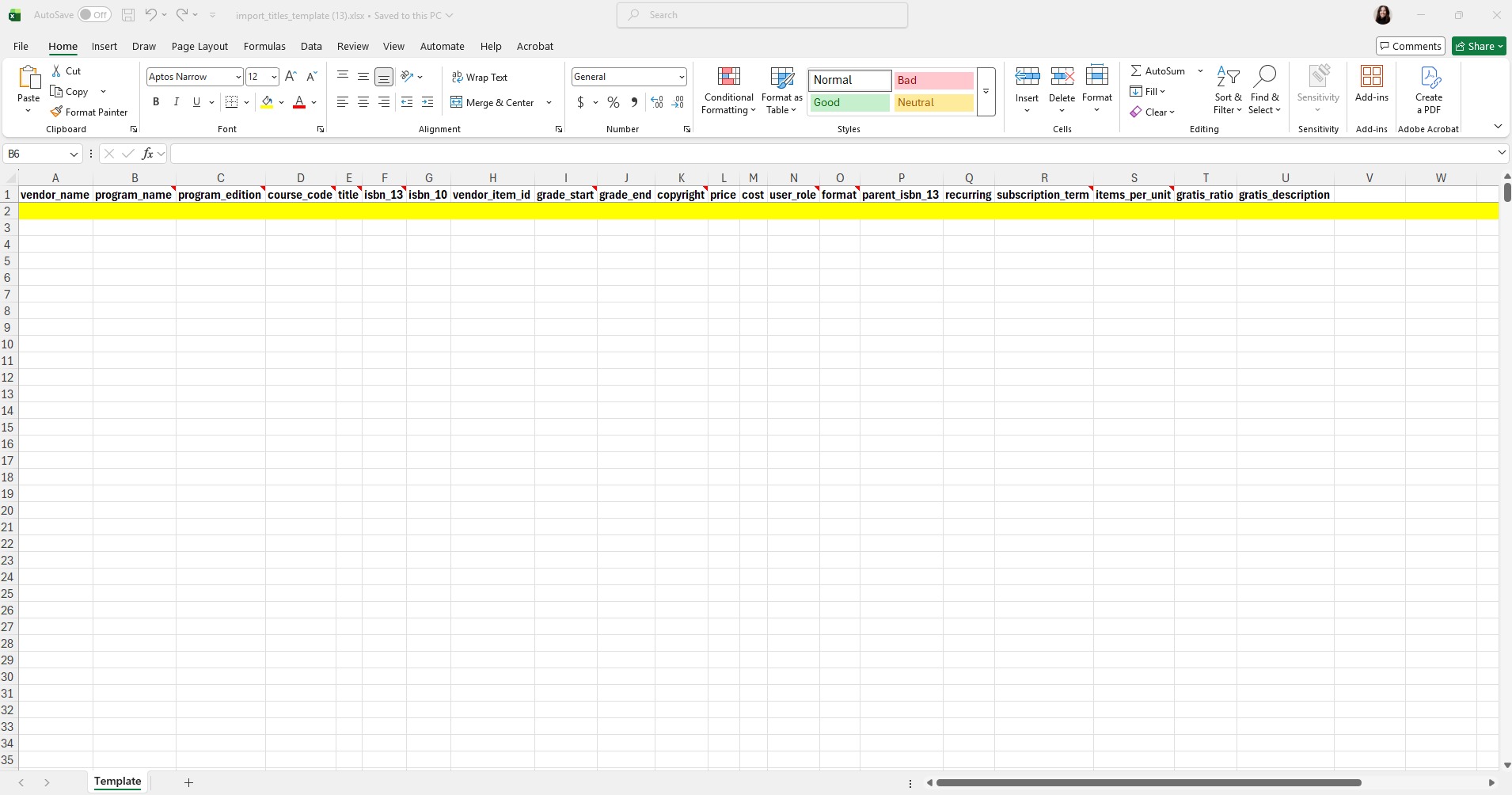
5. Open Template and fill out the titles in our format.
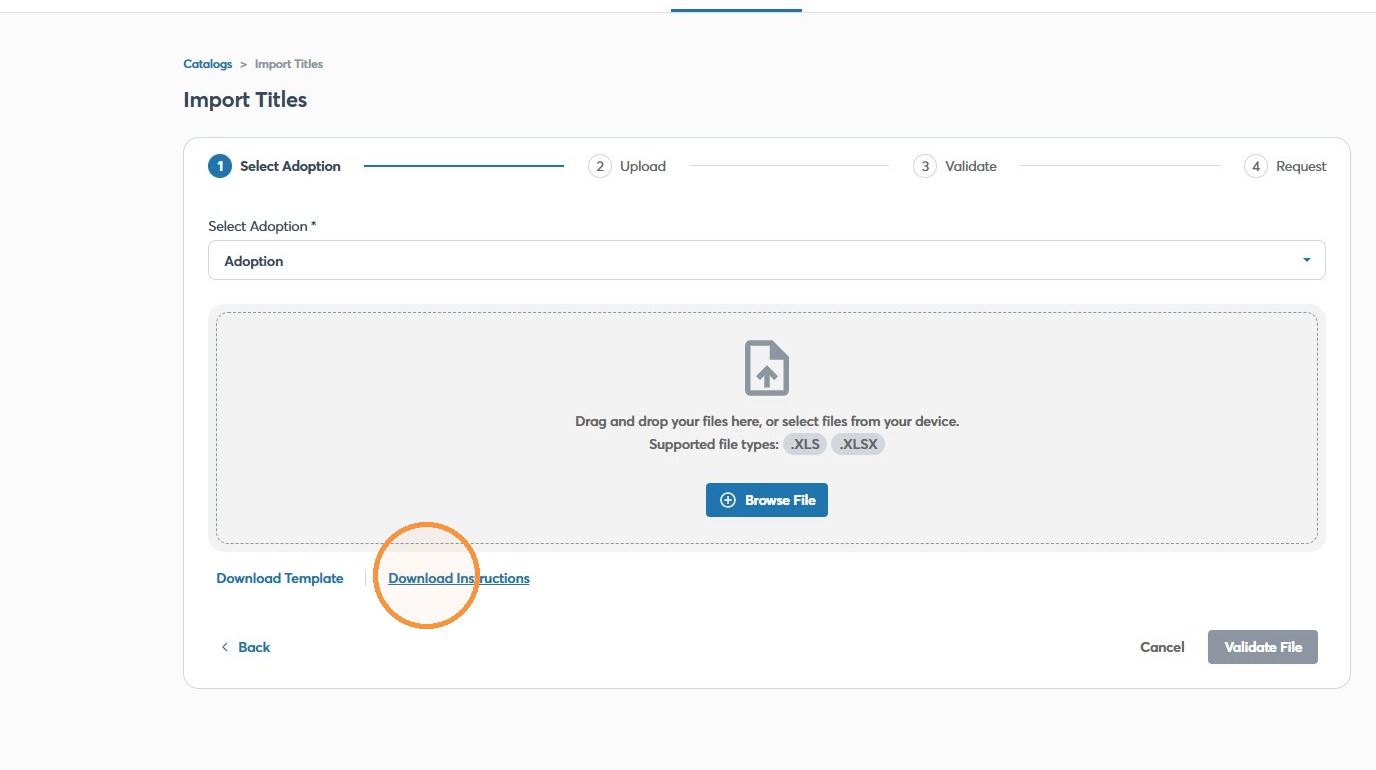
6. Click "Download Instructions"
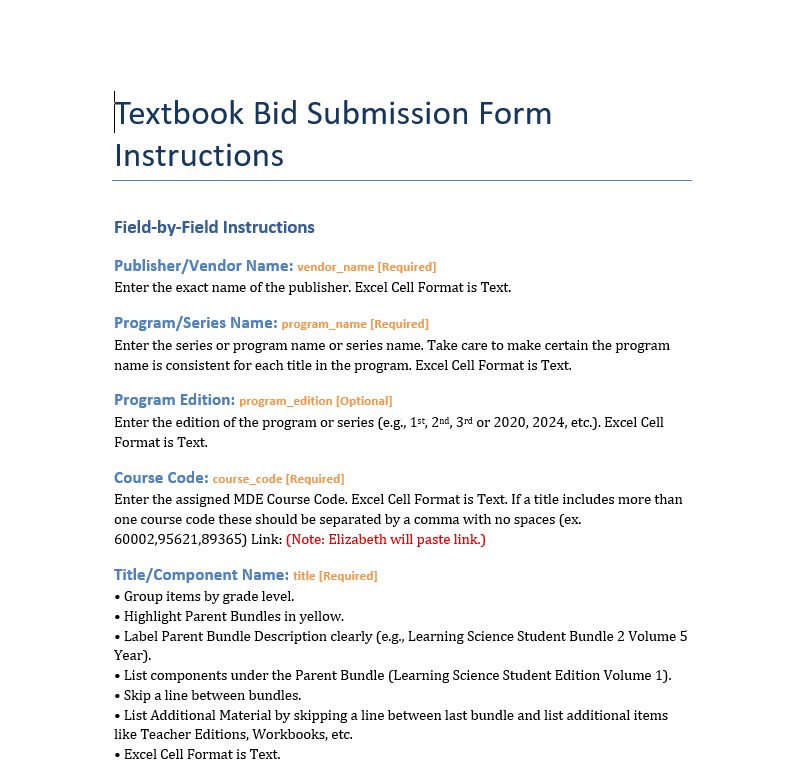
7. Review the Instruction Column by Column for specifics.
8. Select the correct adoption for your titles.
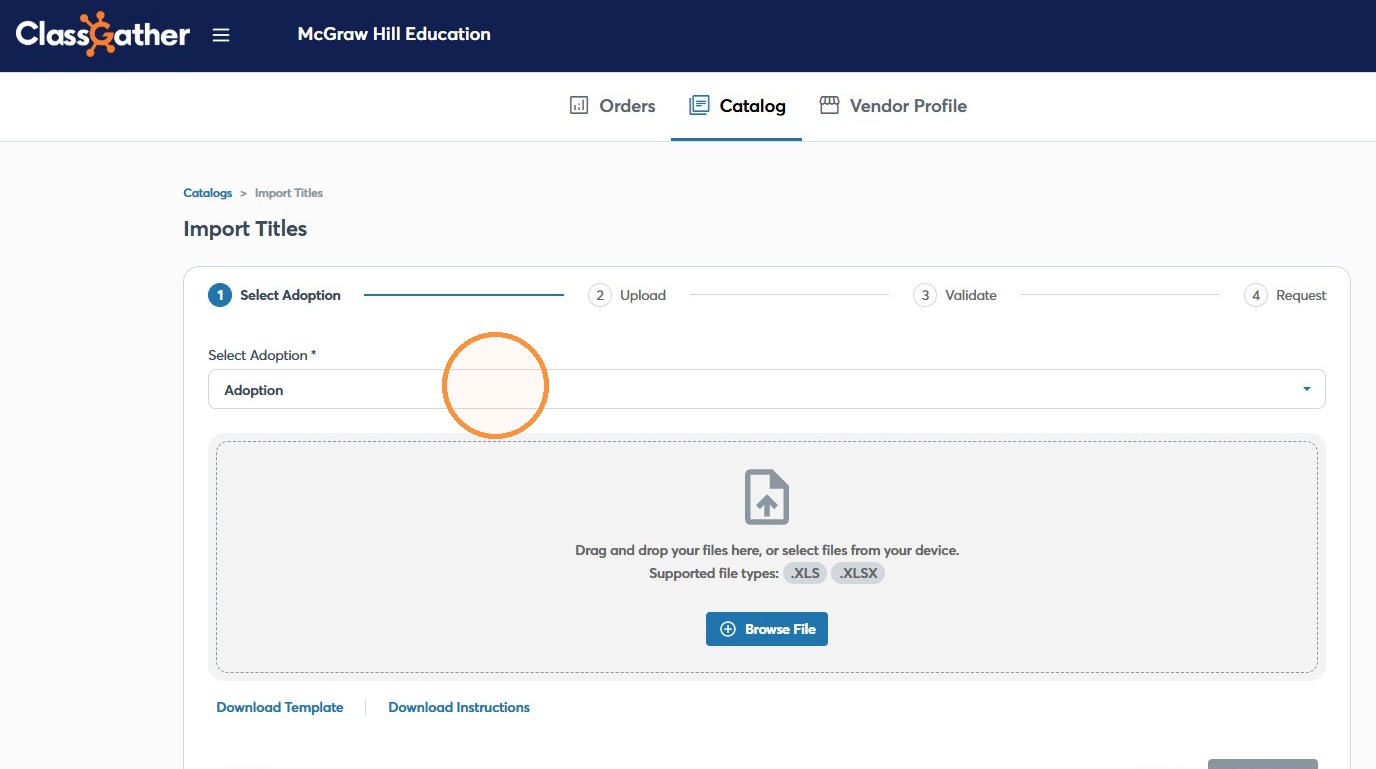
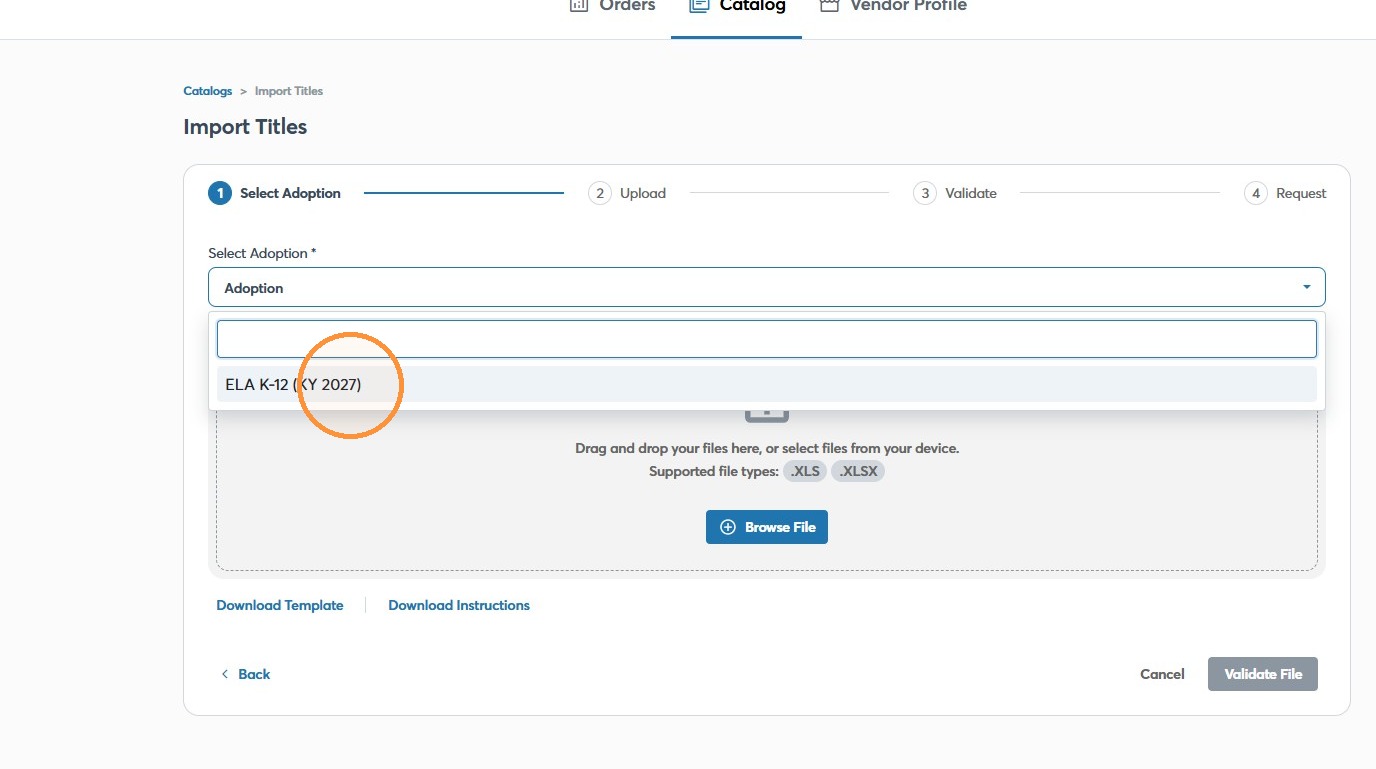
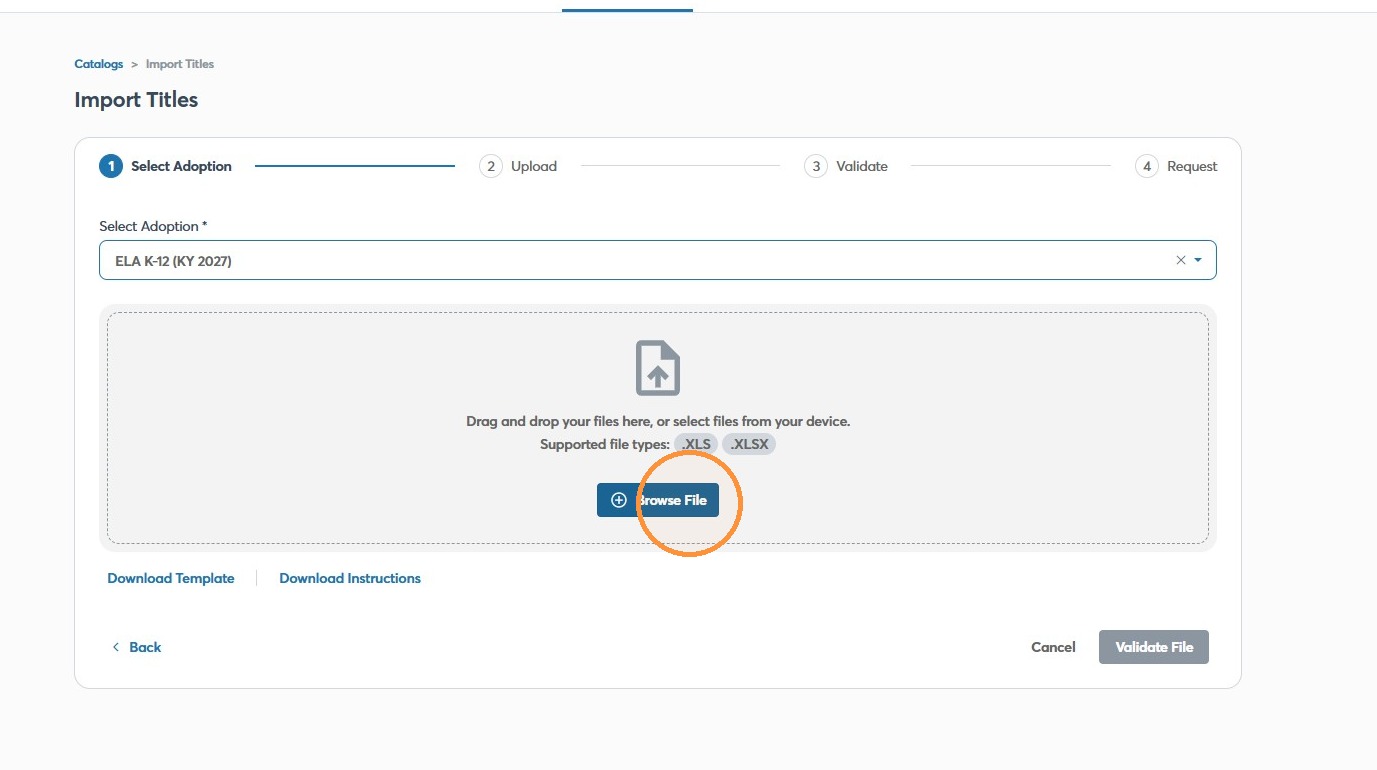
9. Click "Browse File"
10. Click "Validate File"
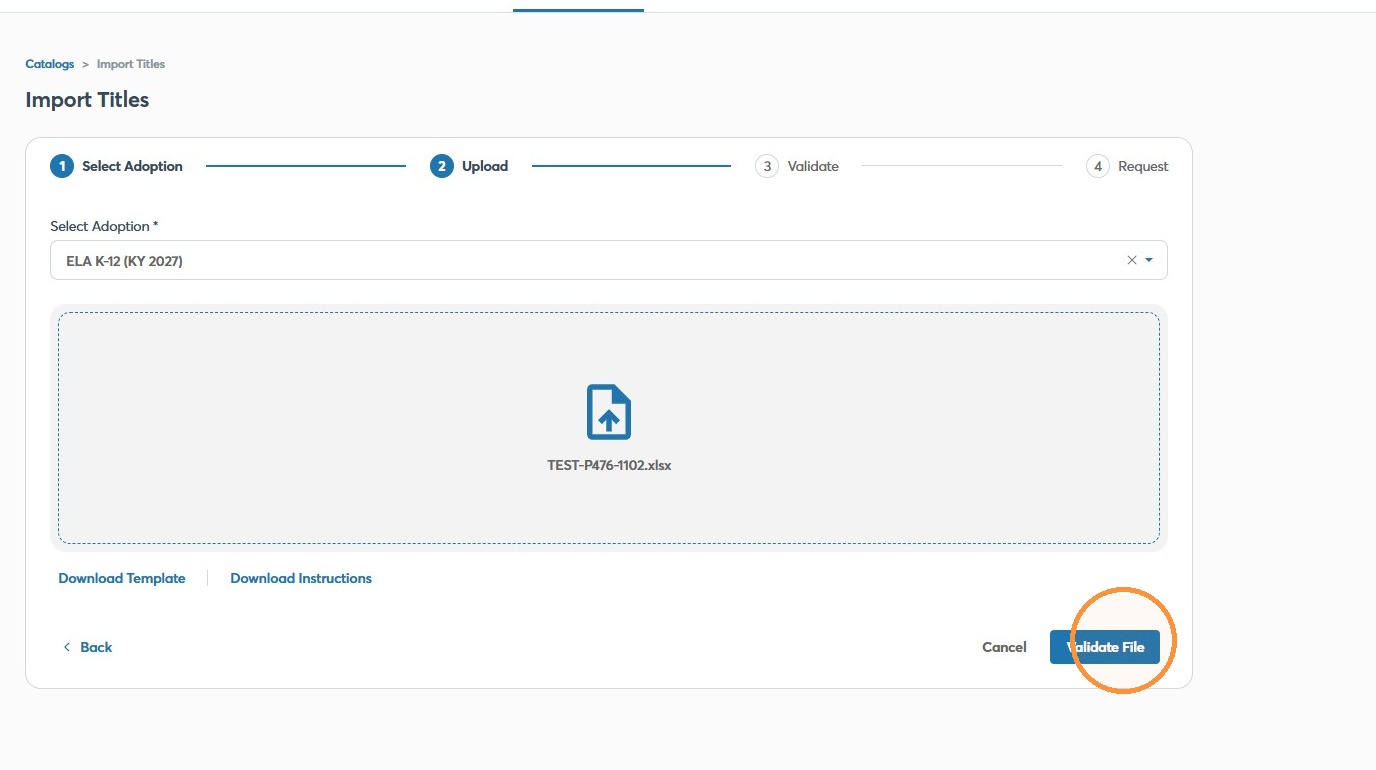
11. Review the erros line by line and click Cancel to go back. Then you can reupload the document once the errors have been resolved.
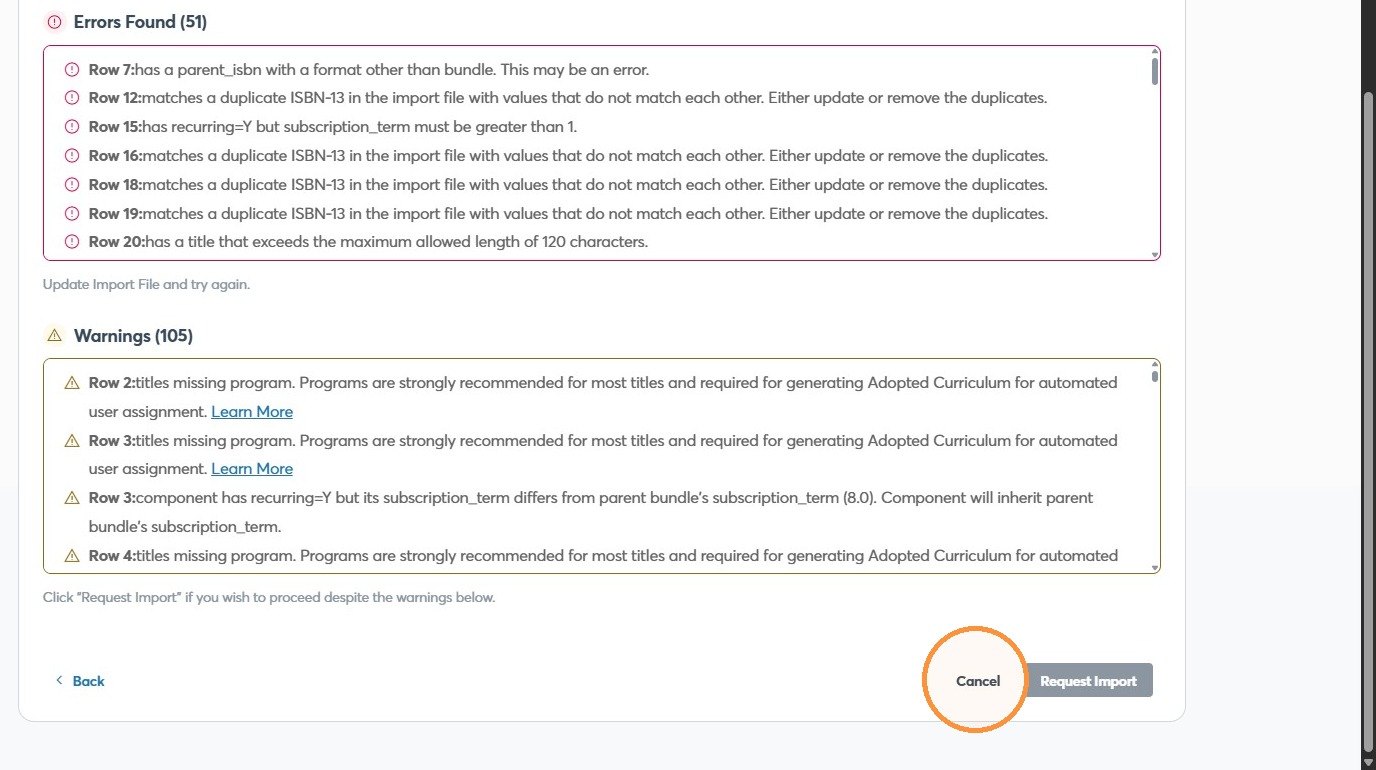
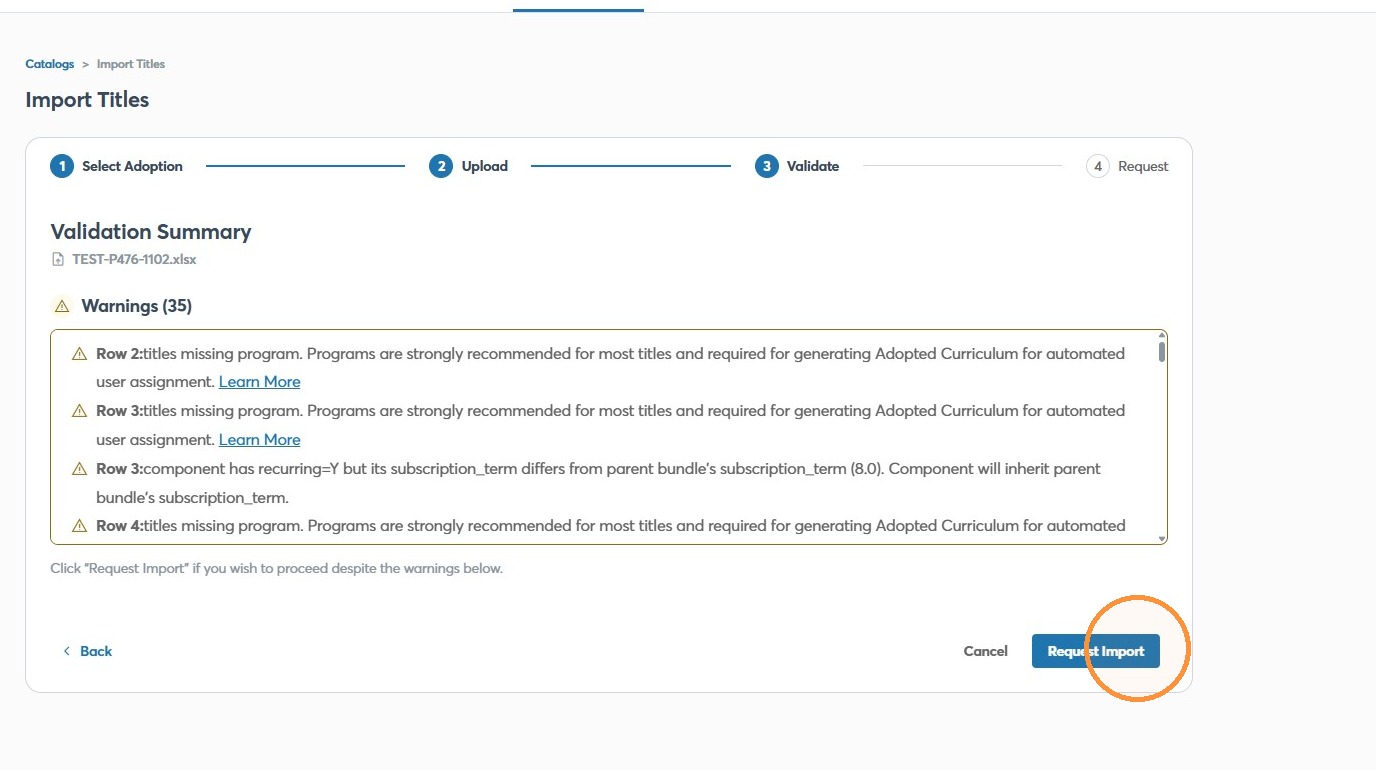
12. Once the errors are cleared Click "Request Import"
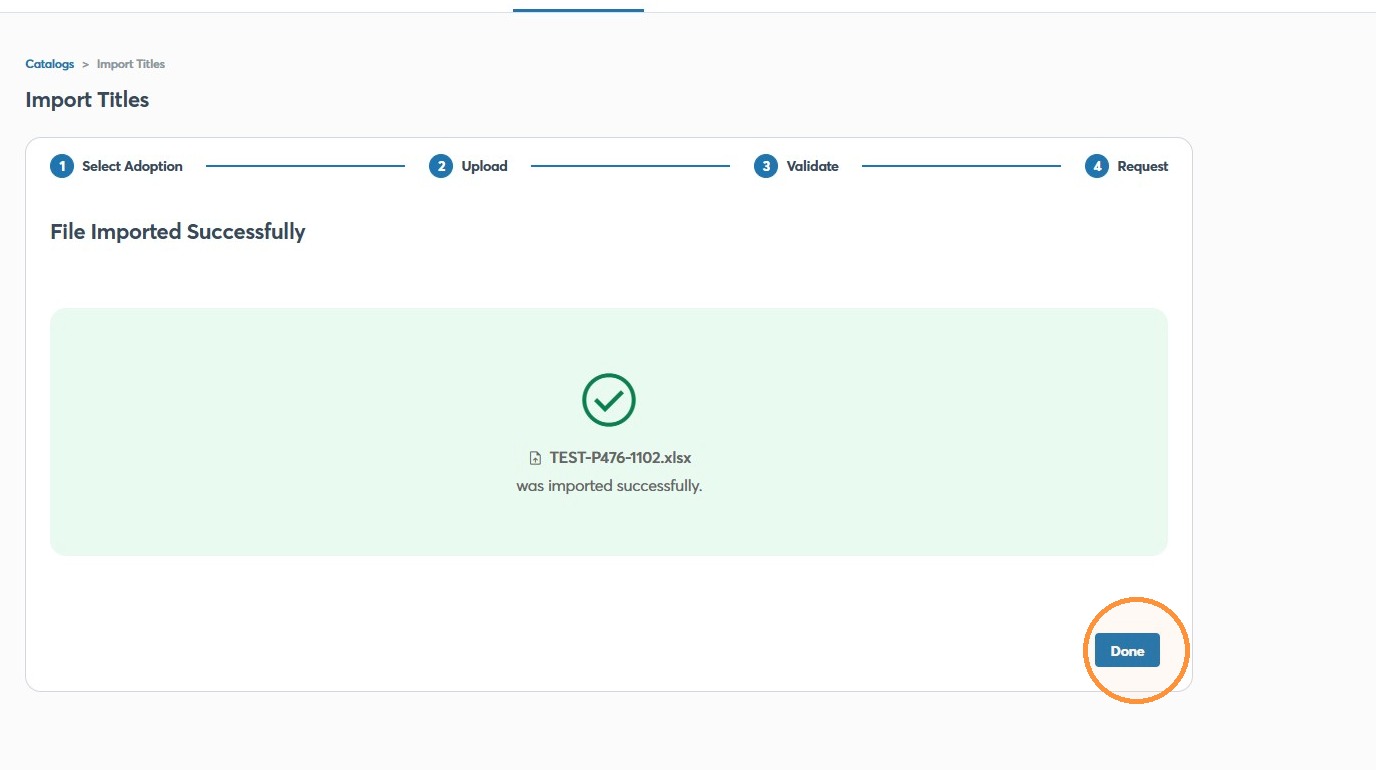
13. Click "Done"
Review and Comments
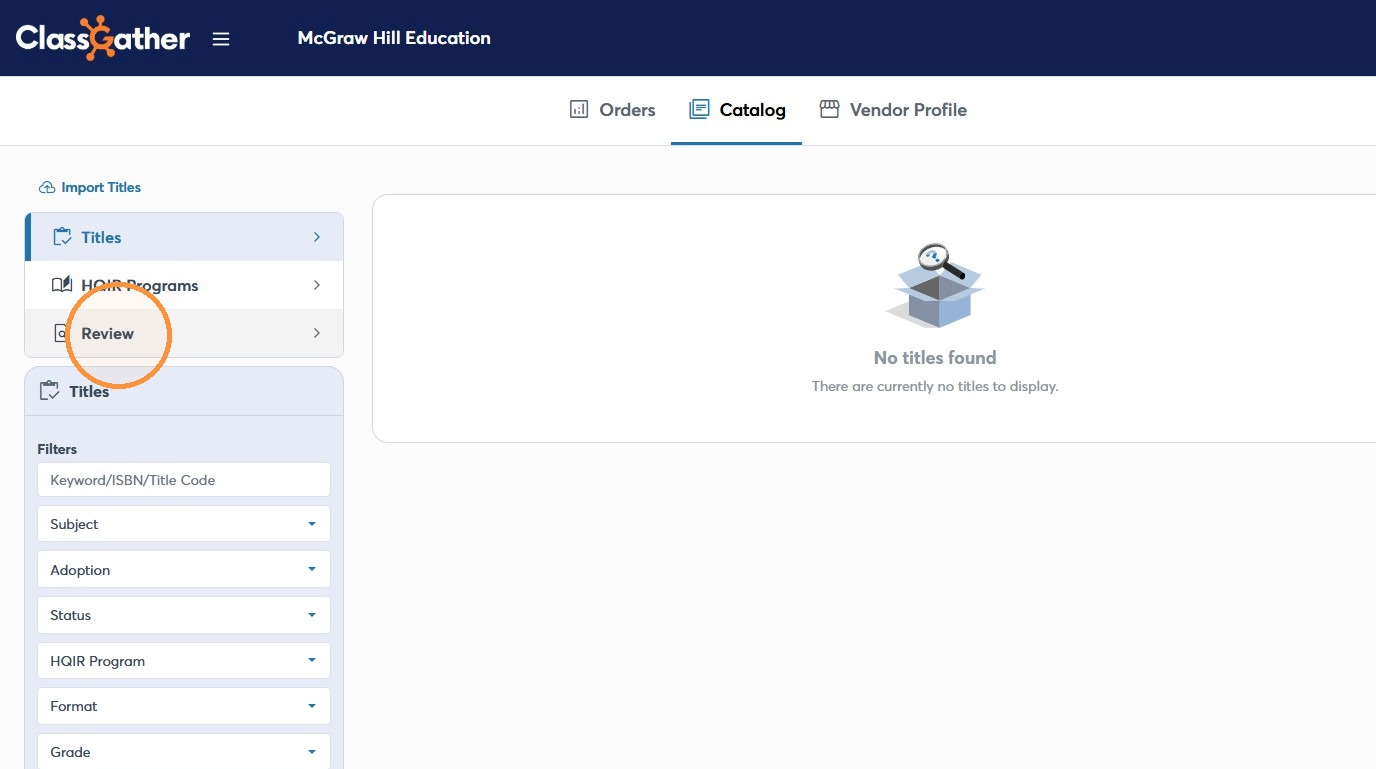
14. Click "Review" to find the batch you uploaded.
15. If you need to add questions or comments you can click the box.
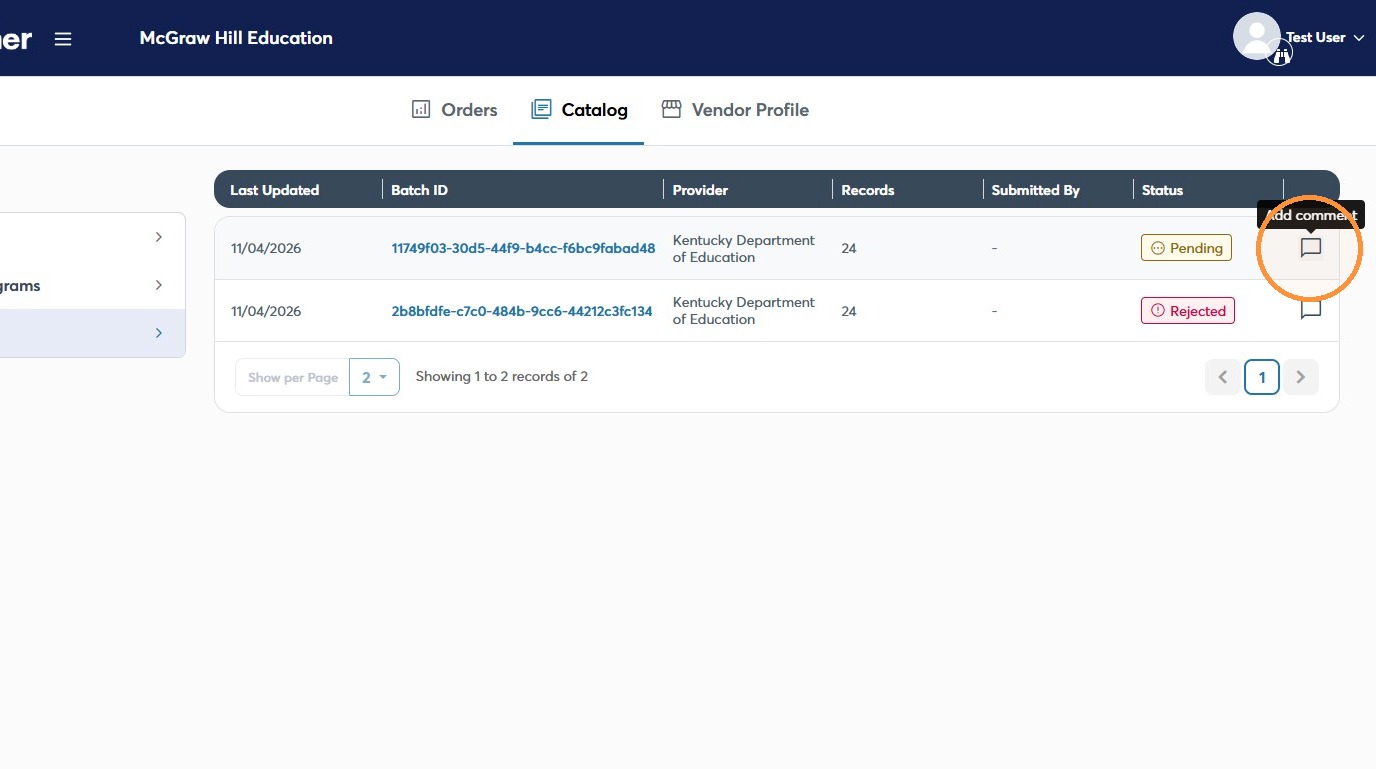
16. Enter a comment in the comment field.
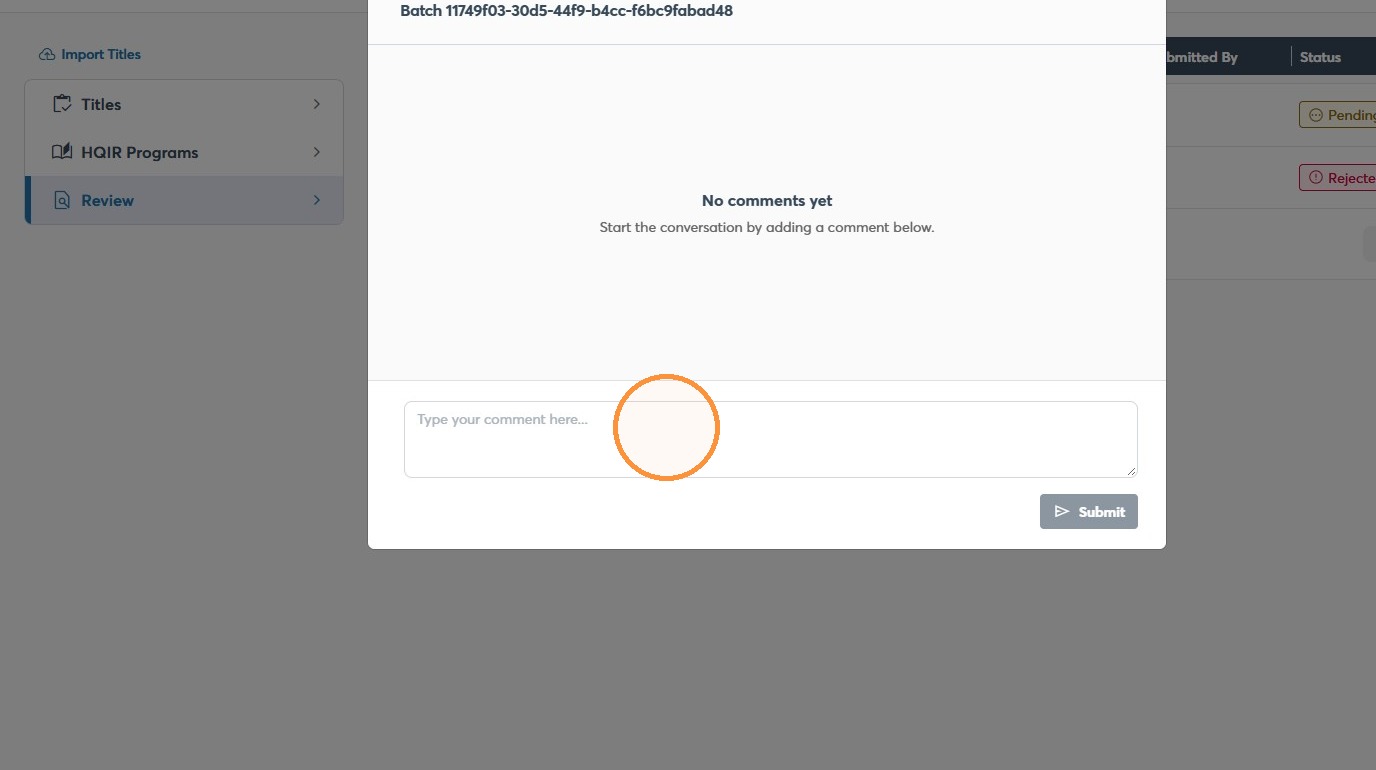
17. Click "Submit" to send. You will also receive an email notification with this information.
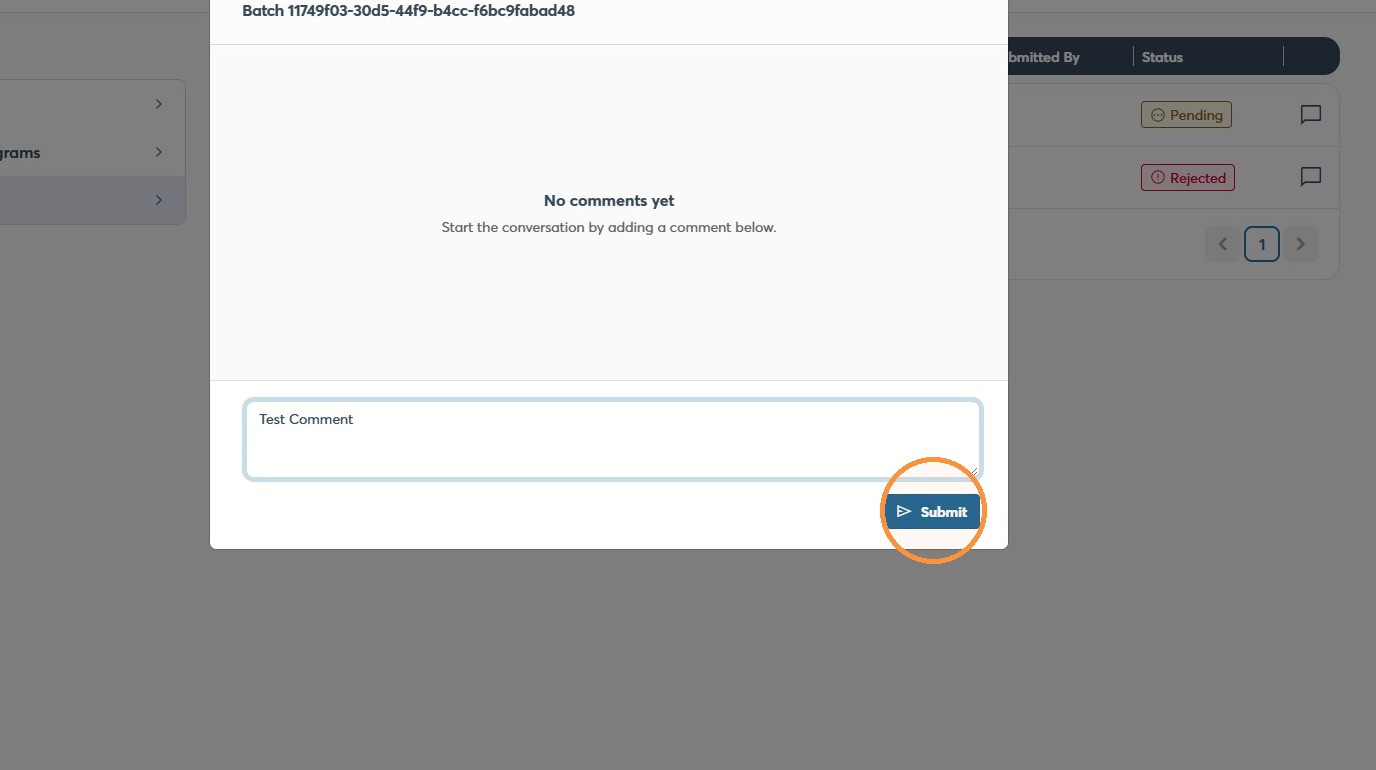
18. Close the Comments dialog.
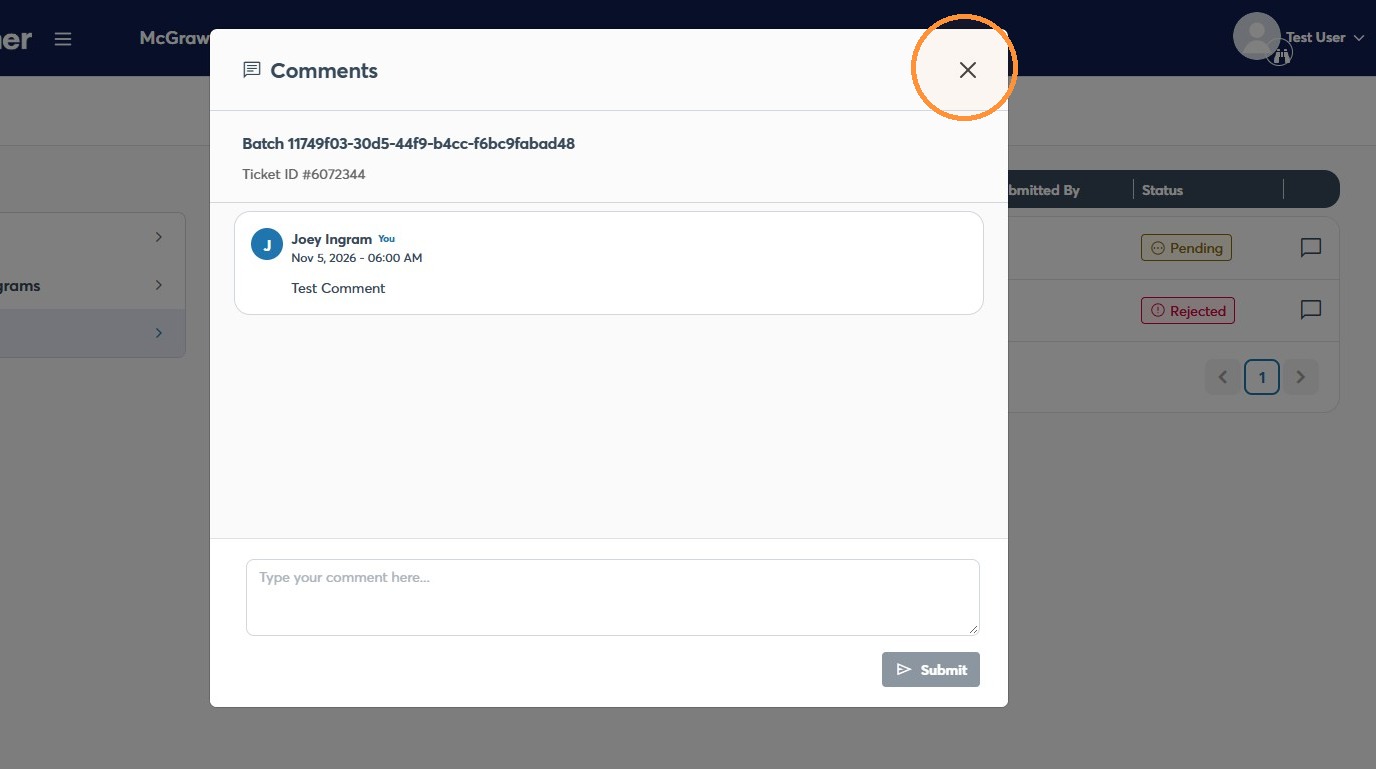
19. Once these have been reviewed by our staff you will be able to Click "Titles" to view what is avaiable in our catalog.