Learn how to access your account password update page directly through your email. This guide ensures a quick and secure process for gaining access to your ClassGather dashboard.
Click Here to view this as a walkthrough with audio instructions.
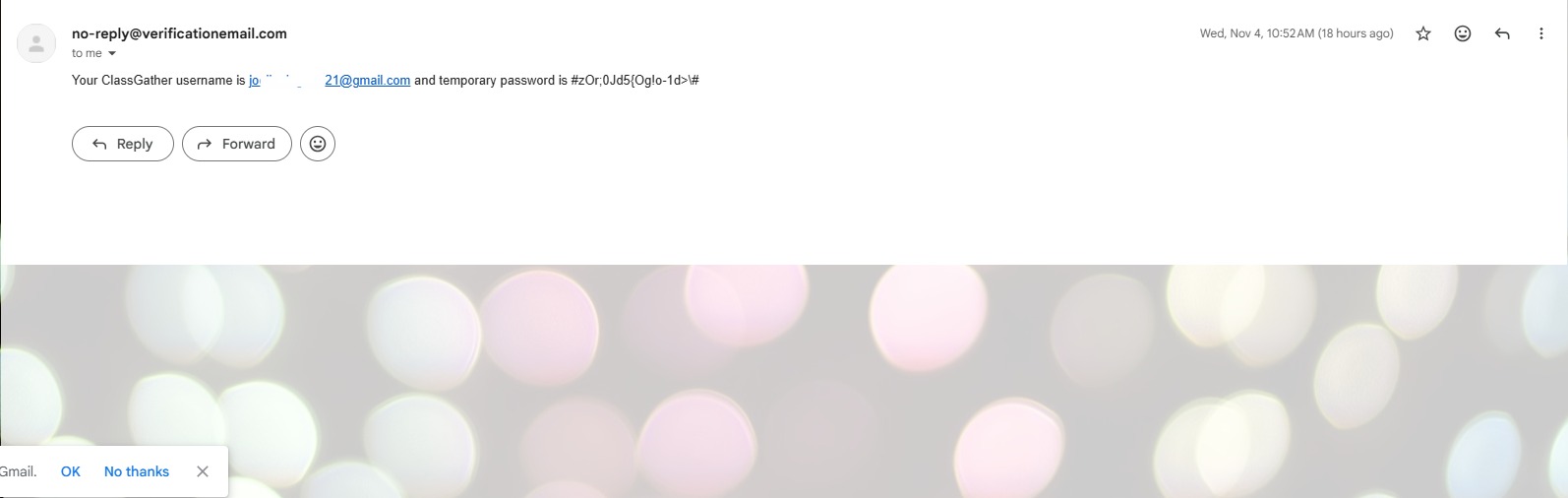
1. In your email you will find a "Your ClassGather temporary password" email from [[noreply@verificationemail.com]] If you are missing an email you can skip to step 2, enter your email address and then choose "Forgot Password" to continue with next steps.
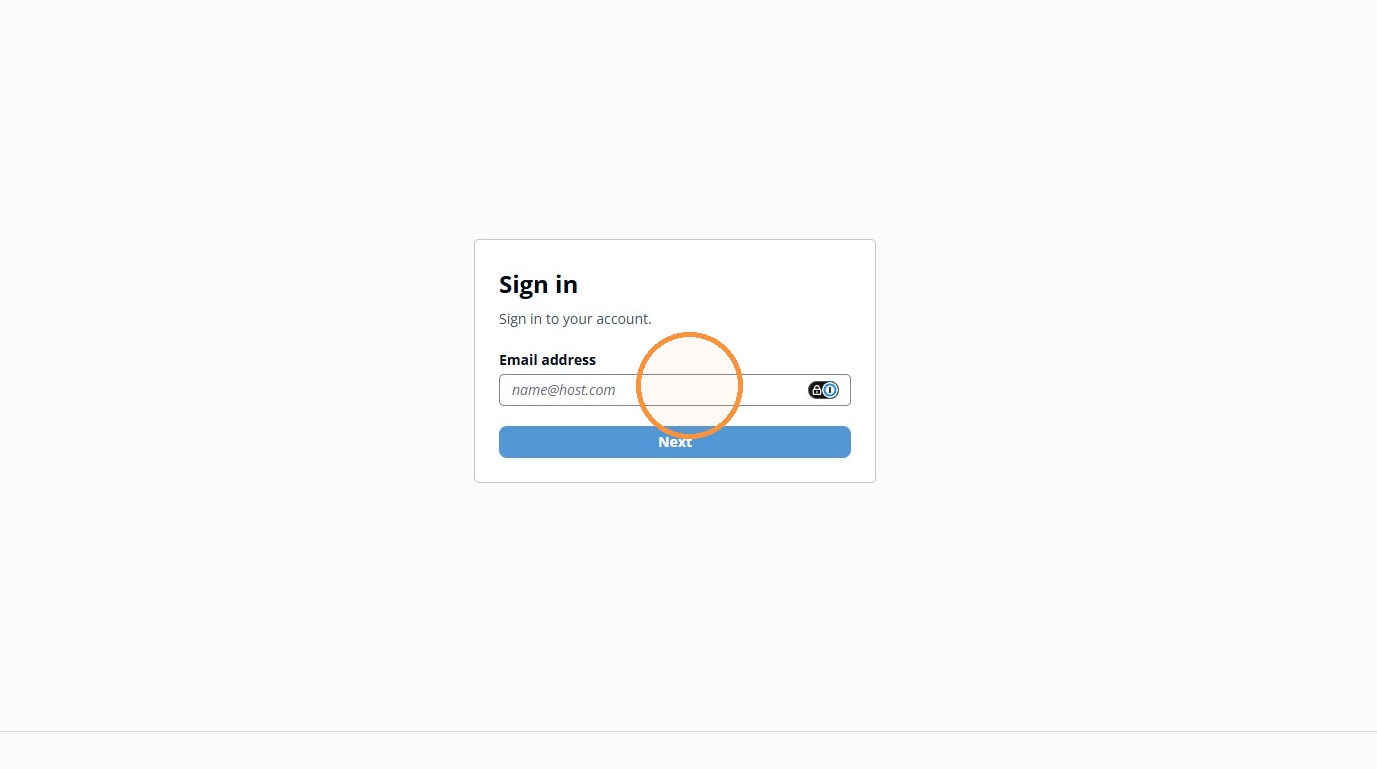
2. Navigate to the correct state's classgather.com/login/vendor URL and enter your email address
3. Enter the temporary password from your email.
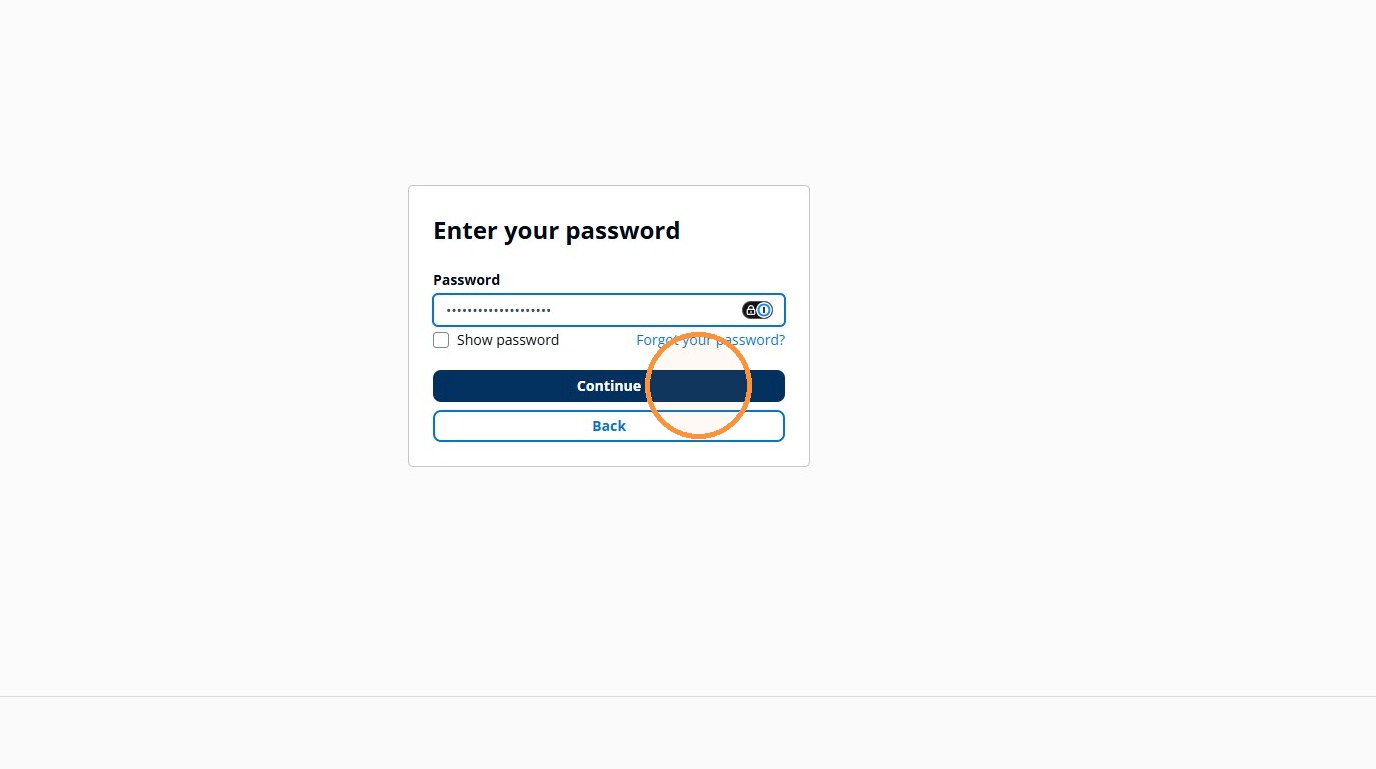
4. Cick "Change password"
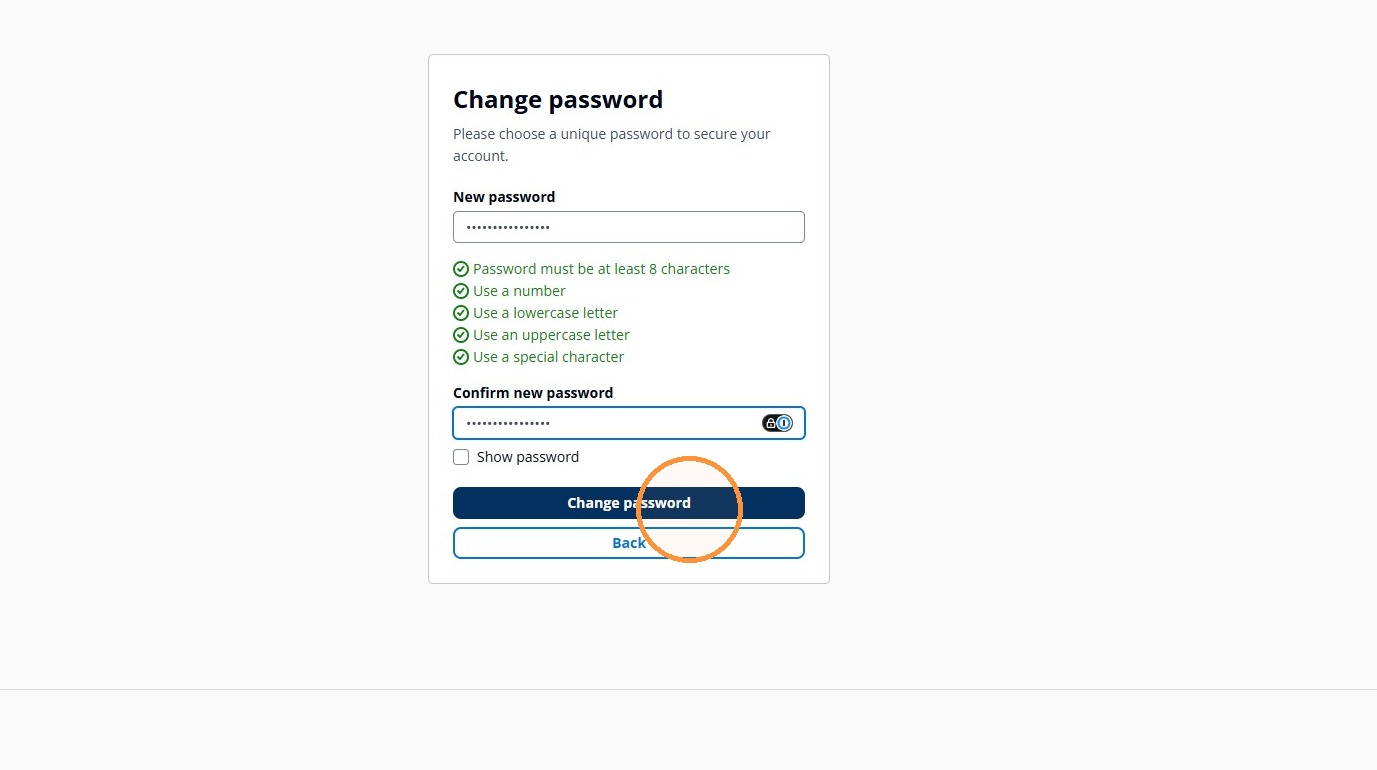
5. Set up Multi-Factor Authentication
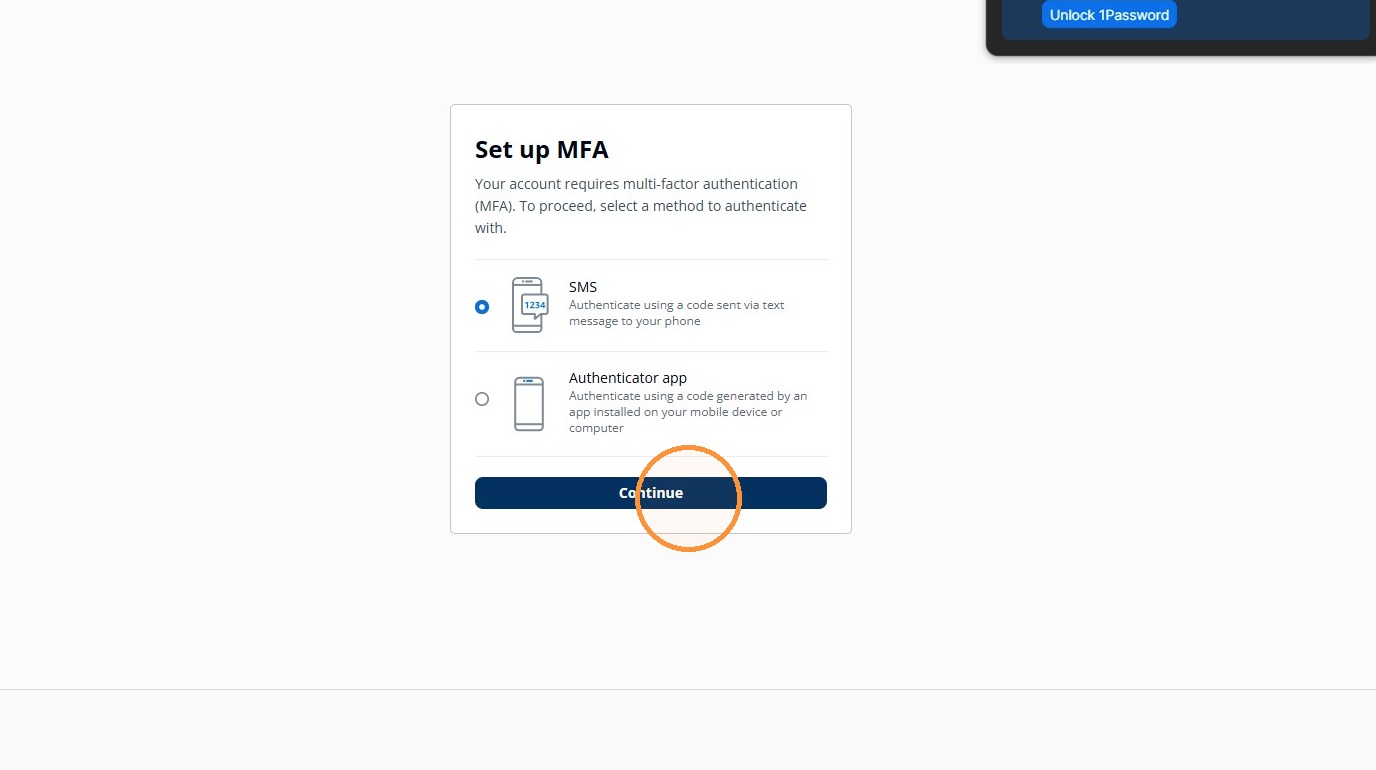
6. Click "Send code"
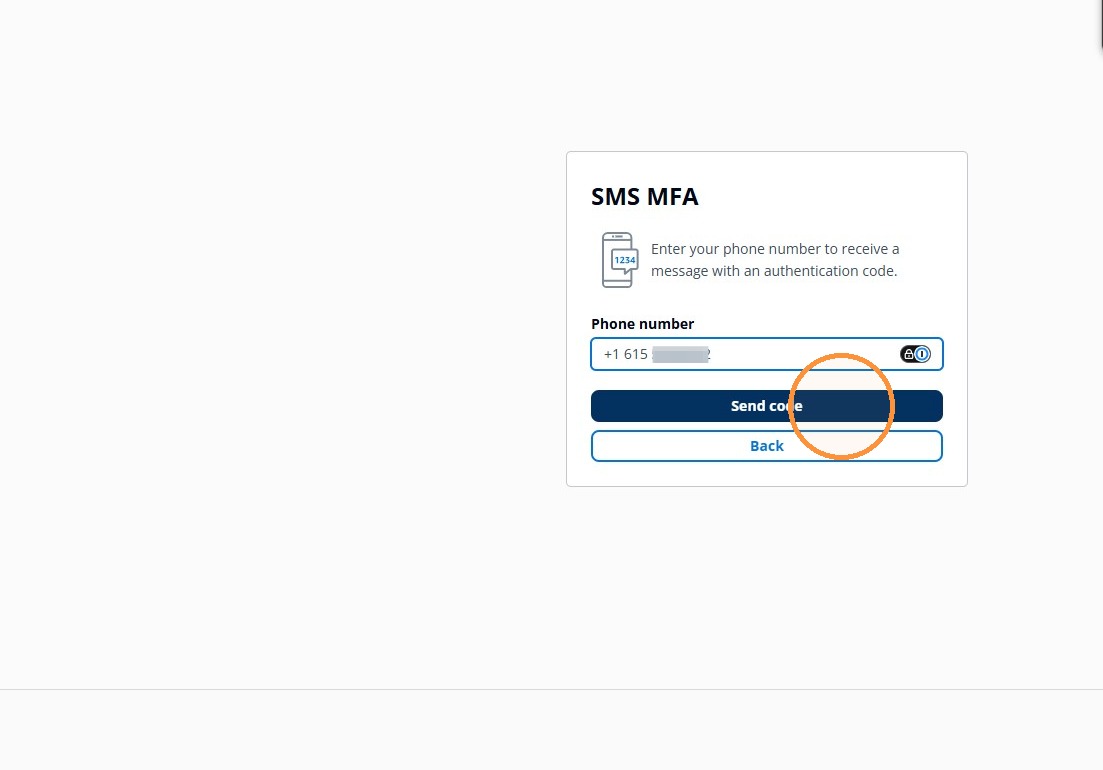
7. Enter the code your received in your text message for SMS MFA.
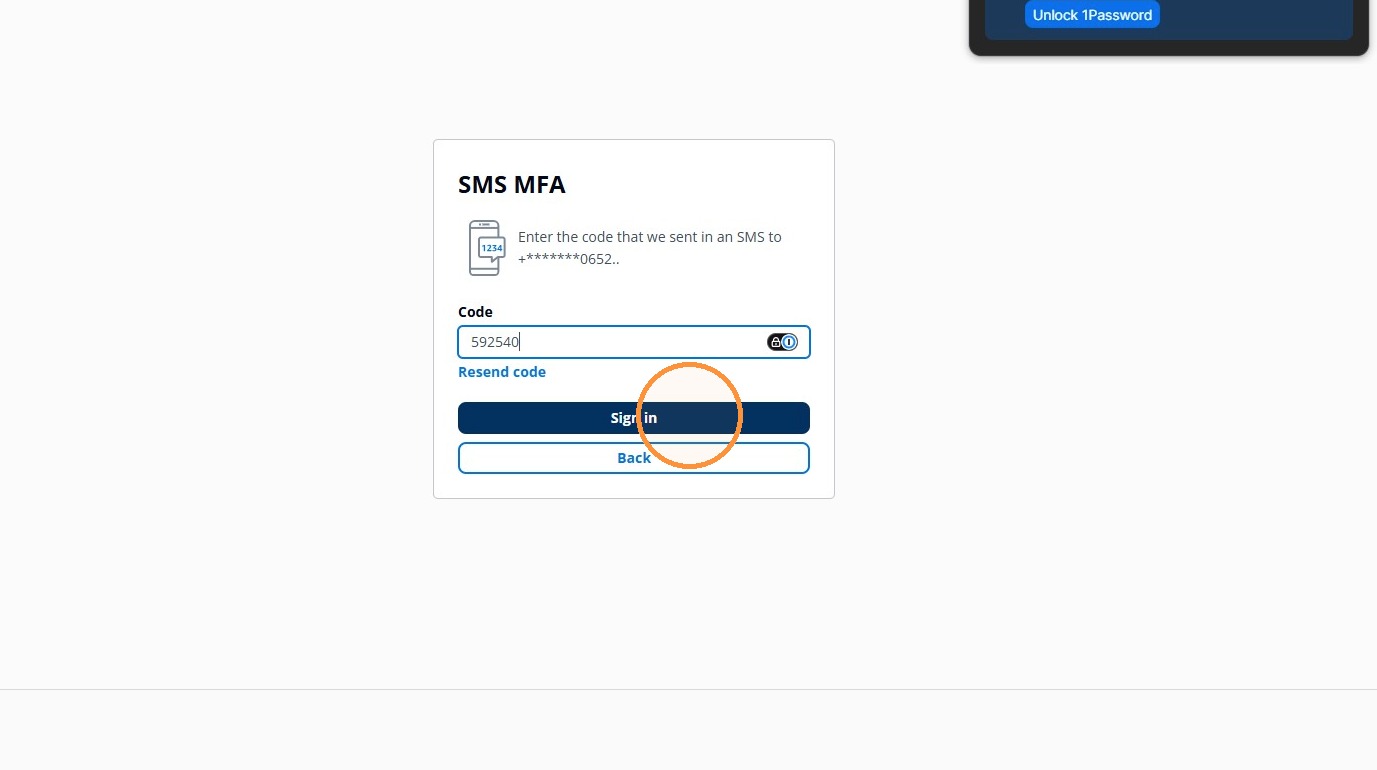
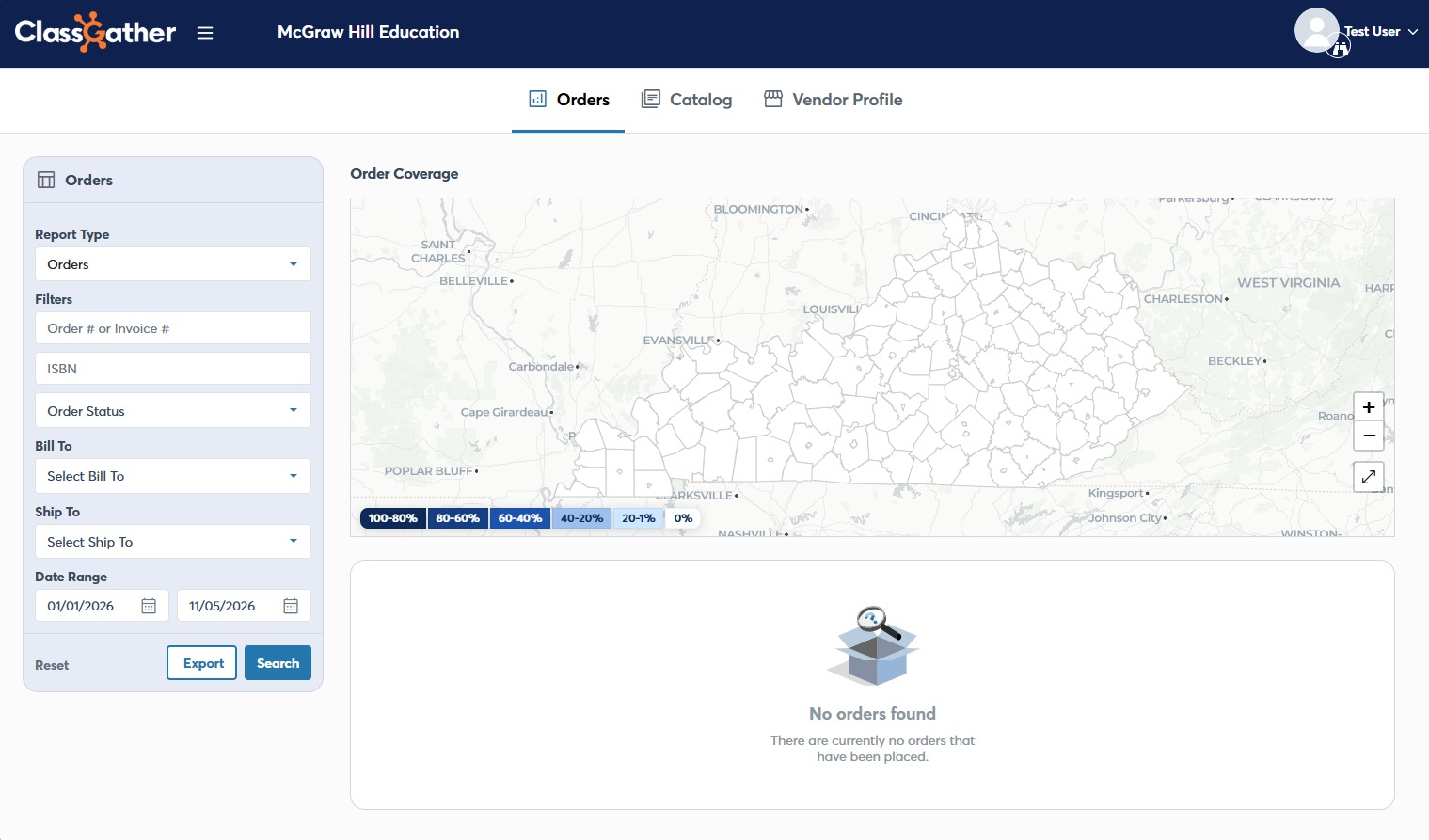
8. This is the homepage you should see once you gain access to ClassGather.